Configuring the failover
In the case of a server failure of your license manager (Primary License Manager) a second, previously inactive Eplan License Manager (Standby License Manager) takes over its function and makes the licenses available.
Preconditions:
- This functionality is part of your license version. Eplan License Manager: Basics
- The Primary and Standby License Manager are installed and functional.
- Primary and Standby License Manager are installed in the same version.
- The firewall of the Primary and Standby License Manager is configured. Configuring the firewall
In the event of an error, use the Test connection button to obtain further information.
 1. Configure the Primary License Manager
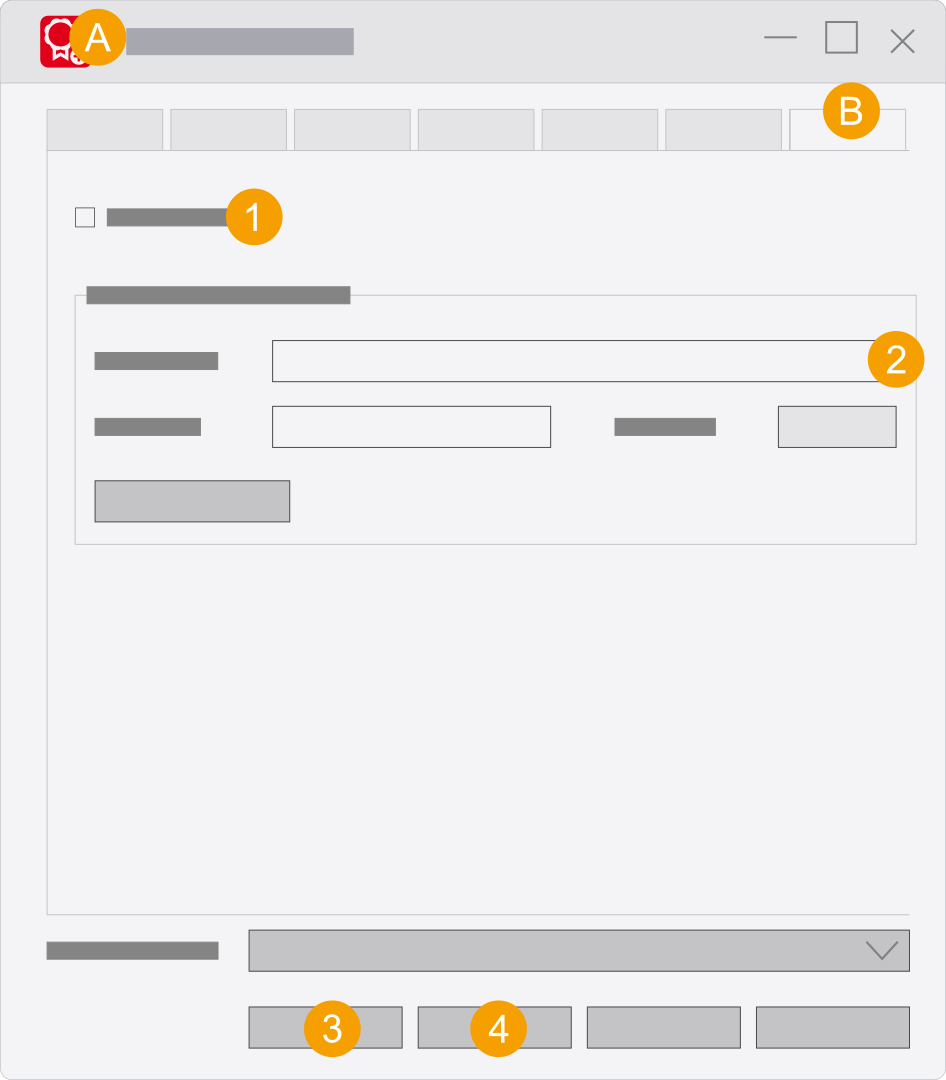
- Primary License Manager - Configurator
- Tab Failover
- Activate the Use failover check box.
- In the Connection to Standby License Manager section, select the connection type and enter the port.
- Click Apply.
- Click Update service.
Eplan recommends the
2. Configure the Standby License Manager
Preconditions:
- The Standby License Manager is installed. Installing the Eplan License Manager
- The Standby License Manager is located in the same domain as the Primary License Manager.
- The Primary License Manager is configured.
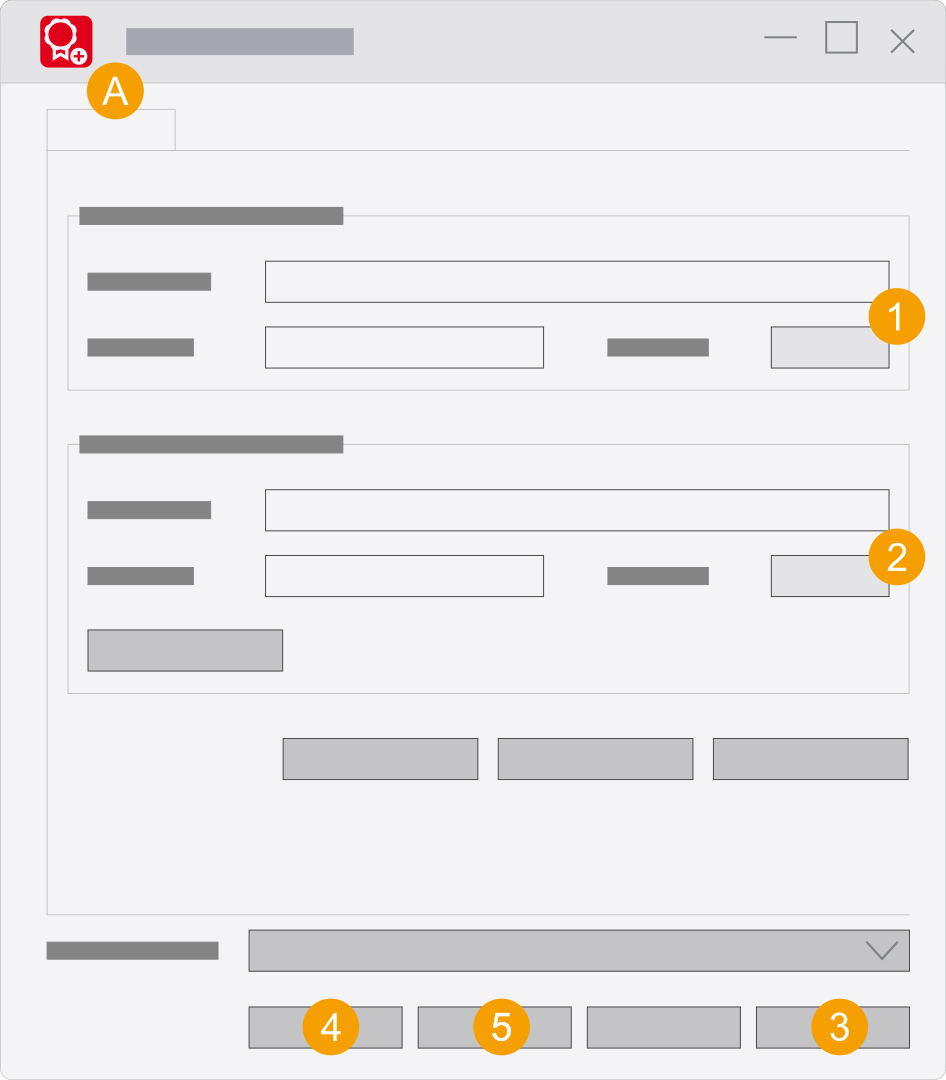
- Eplan Standby License Manager Configurator
- In the Connection section, select the connection type and enter the same port that you used in the Primary License Manager.
- In the Connection to Primary License Manager section, select the DNS name or the IP address connection type and enter the data for the Primary License Manager and the same port.
- Click Apply.
- Click Update service.
- Click OK.
Eplan recommends the
Configuring the failover (up to Version 2025)
Configuration of the "Remote Dongle Service" service
In order to establish a connection between the two License Managers you have to run the service under the same user account.
Perform the following steps for the Primary License Manager and the Standby License Manager:
- To do this, switch to the Microsoft administrative services Services on your server's operating system.
- In the Run dialog enter the
services.msc command. - In the Services dialog search for the Remote Dongle Service entry and open the properties of this service.
- In the Properties of Remote Dongle Service dialog select the Log on tab.
- Select the This account option in this tab and select a user for the service using the Browse button.
- Perform these steps on the two computers running the Eplan Primary License Manager and Eplan Standby License Manager.
The selected user should be set up as the default user for the "Remote Dongle Service" in your domain. Assign administrative rights to these users on the servers on which the Eplan License Manager runs.
1. Configure the Primary License Manager
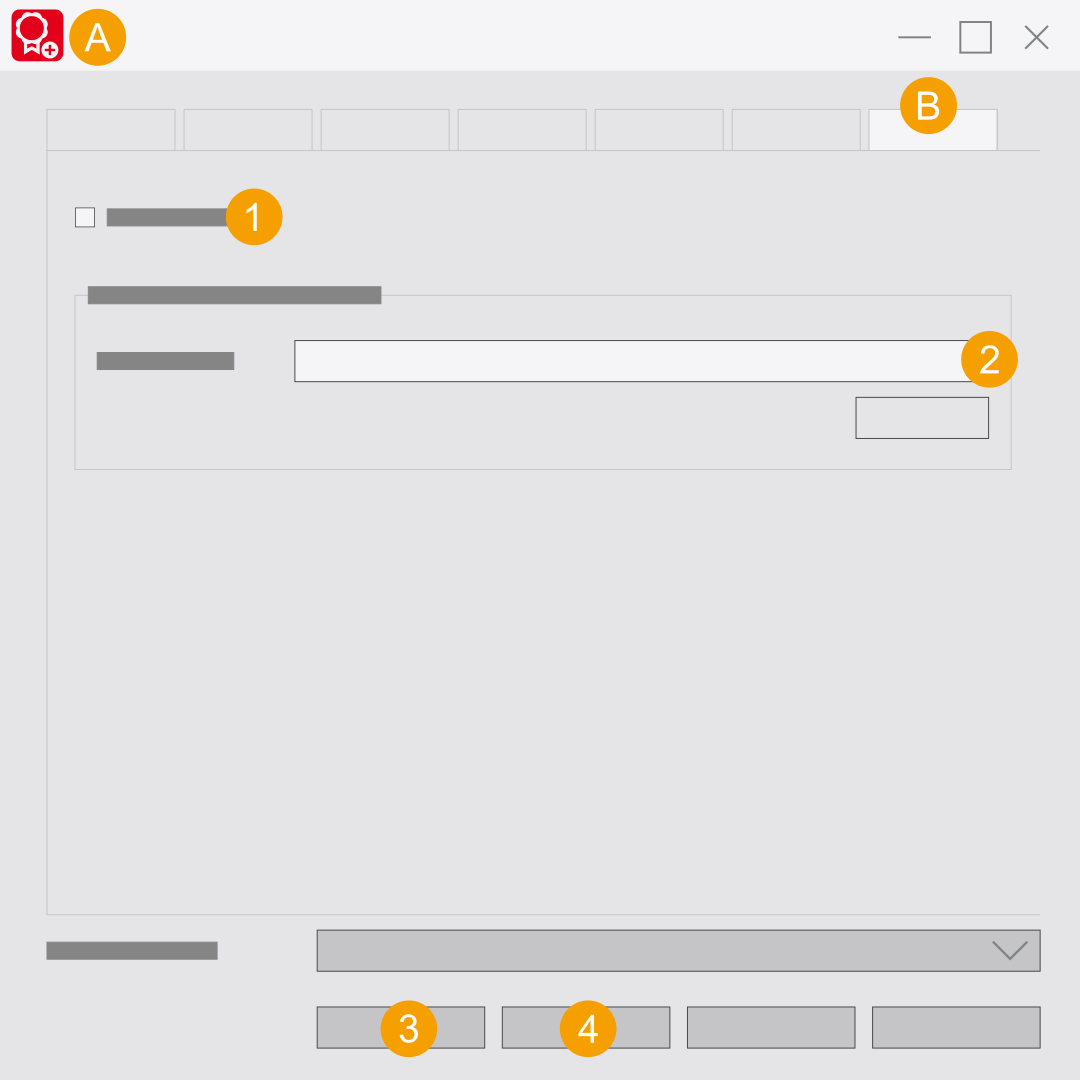
- Eplan License Manager - Configurator
- Tab Failover
- Activate the Use failover check box.
- Enter the name, the "Fully qualified domain" name (FQDN) or the IP addresses for the Standby License Manager in the Computer name field.
- Click Update service.
- Click OK.
2. Configure the Standby License Manager
Preconditions:
- The Standby License Manager is installed. Installing the Eplan License Manager
- The Standby License Manager is located in the same domain as the Primary License Manager.
- You have configured the DCOM interface with the same setting as for the Primary License Manager. (Configuring the DCOM interface (up to Version 2025))
- You have performed the configuration of the "Remote Dongle Service" service for the Standby License Manager.
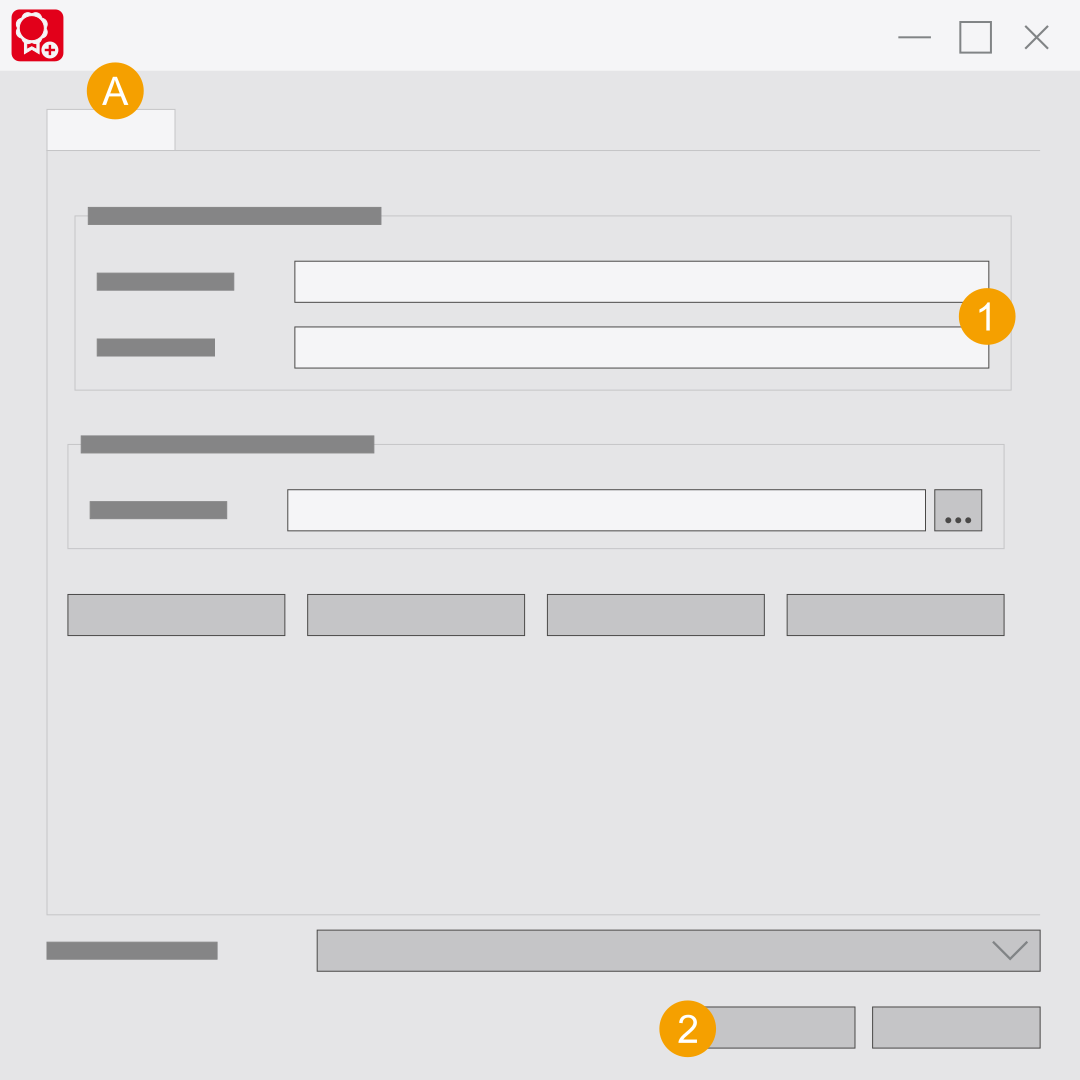
- Eplan Standby License Manager (ELM Configurator): Here only the Properties tab is available.
- Enter the name, the "Fully qualified domain" name (FQDN) or the IP addresses for the Standby License Manager or the serial number of your dongle in the Computer name field.
- Click OK.
The failover is limited to seven days. Afterwards the Primary License Manager should be available again.