Configurator: Basics
The Eplan License Manager - Configurator is a component of the Eplan License Manager. When you install the Eplan License Manager, the  Eplan License Manager - Configurator link is created on the Windows Desktop. You can use this shortcut to launch the configuration program for the Eplan License Manager.
Take in account the license version that applies for the Eplan License Manager - Configurator and the Eplan License Manager - Monitor. Eplan License Manager: Basics
Eplan License Manager - Configurator: Activate license
Information about how to open the Eplan License Manager and activate the license is available here:
- Activating a Concurrent License - with Internet connection
- Activating a Concurrent License - without Internet connection
Important!
Continuing to use an activated license
An activated license is coupled to the software and hardware information of your server. If you want to carry out modifications to your server or want to activate the license on a different server, you must always first return the license!
More information on when this is in particular required is available here.
Using a license from Eplan License Manager - Configurator
You can find here how to borrow or use a license from the Eplan License Manager - Configurator:
- Borrowing / using a license from ELM - with network connection
- Borrowing / using a license from ELM - without network connection
Important!
The license only remains active when the network connection to the Eplan License Manager is active.
When the network connection is interrupted, the Eplan product is terminated, or the client is shut down, the license is automatically returned to the Eplan License Manager.
User interface of the Primary License Manager - Configurator
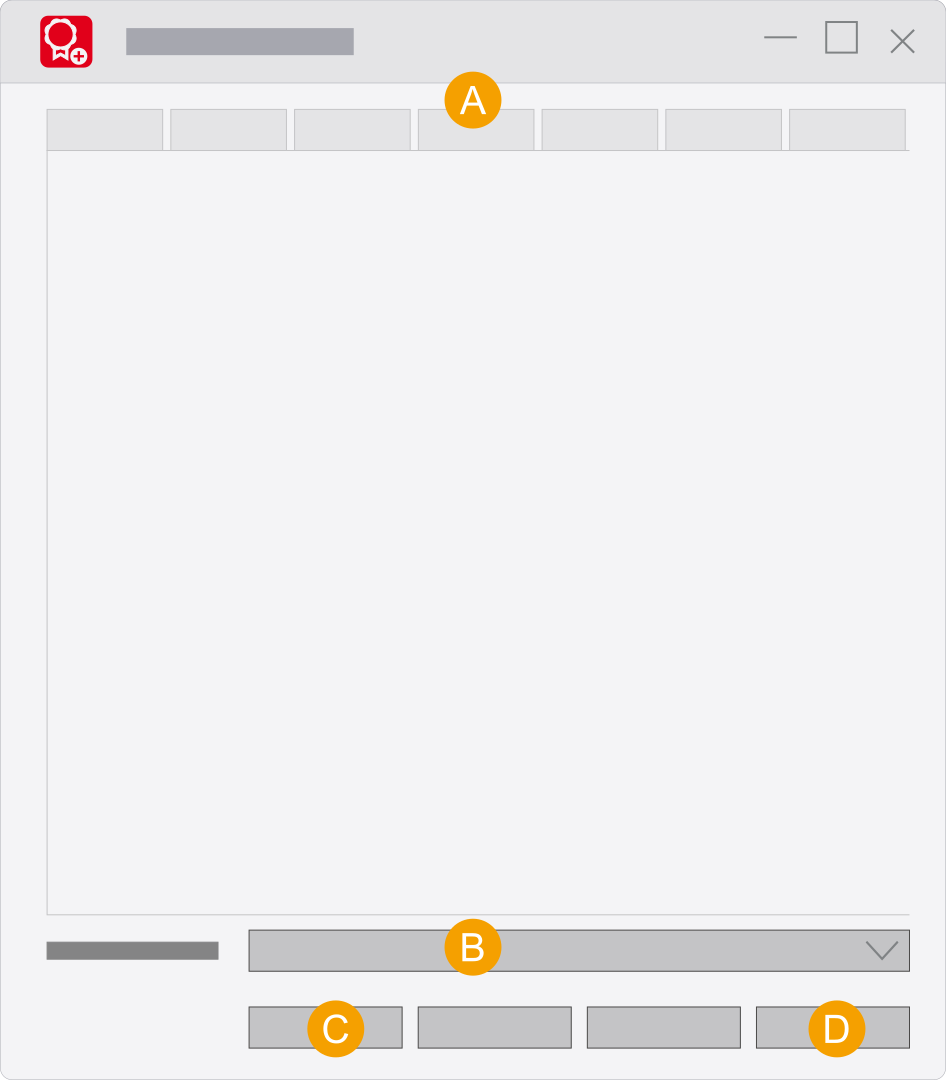
- Tabs: The number of tabs depends on the scope of licensed add-ons.
- Change the dialog language of the Eplan License Manager - Configurator here and restart it.
- Update service updates the Eplan License Manager. The new settings in the configurator are now also available to users during license selection in the Select license dialog.
- With Apply your new settings are saved in the Eplan License Manager - Configurator and the dialog remains open.
User interface of the Standby License Manager - Configurator
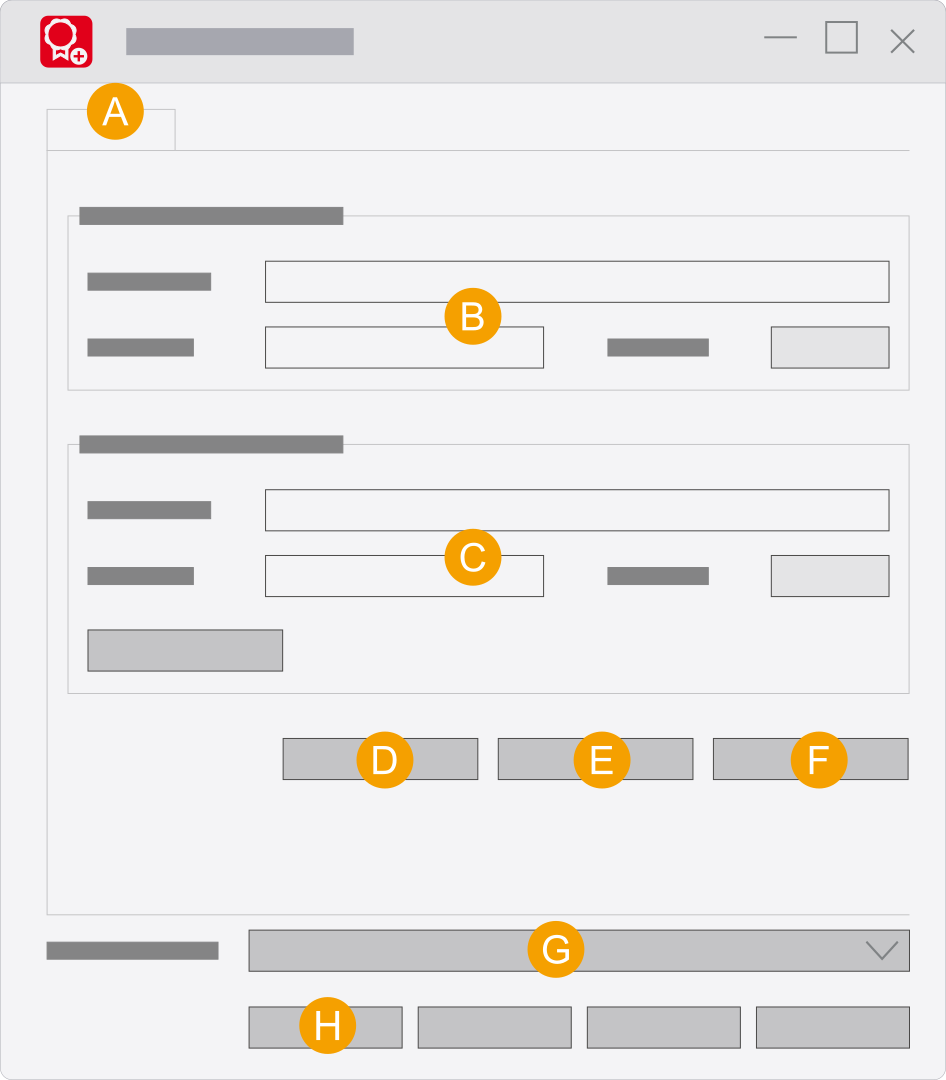
- Properties tab: Here you can define properties and carry out actions. Please note that the scope is coupled to your license.
- Specify the connection type to the clients here. The same port must be specified for the Primary and Standby License Manager.
- Specify the connection type to the Primary License Manager here. The same port must be specified for the Primary and Standby License Manager. Test the connection of the two License Managers here.
- Borrow: Here you specify the settings for borrowing a Concurrent License when the Standby License Manager is active. Defining the borrowing period of bundles
- Change password: Use this button to specify a password for the Eplan License Manager - Configurator. The password protects the program from unauthorized access. (Setting or changing the password)
- Monitor: Use this button to open the
Eplan License Manager - Monitor . Here you can display the current license status. In addition you can check the status of the "Standby License Manager". Do not use the Monitor until the connection test has been approved. - Change the dialog language of the Eplan License Manager - Configurator here and restart it.
- Update service updates the Eplan License Manager. The new settings in the configurator are now also available to users during license selection in the Select license dialog.
 User interface of the License Manager (up to Version 2025)
User interface of the Primary License Manager
- Tabs
- Change the dialog language of the Eplan License Manager - Configurator here and restart it.
- Update service updates the Eplan License Manager. The new settings in the configurator are now also available to users during license selection in the Select license dialog.
- With Apply your new settings are saved in the Eplan License Manager - Configurator and the dialog remains open.
User interface of the Standby License Manager
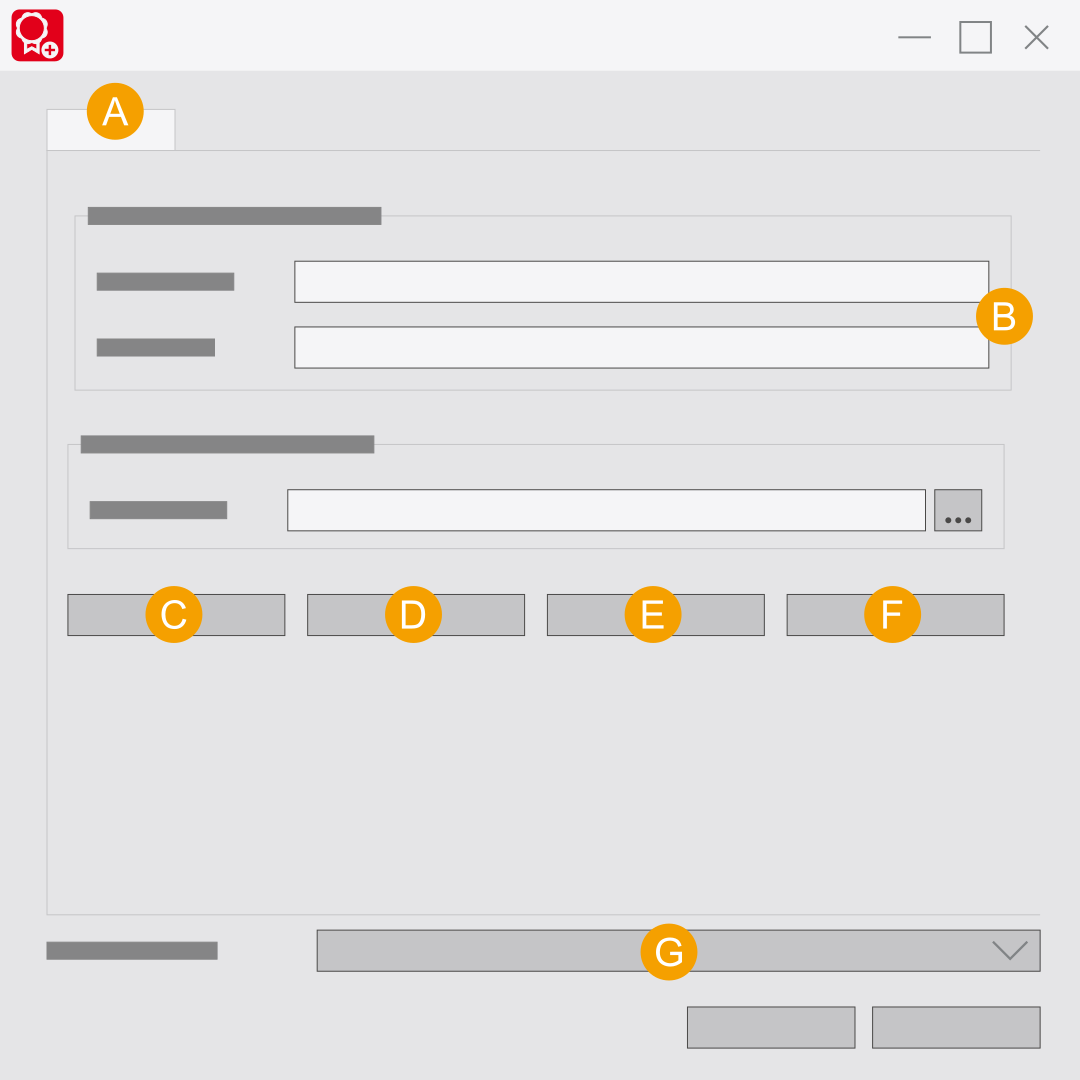
- Properties tab: Here you can define properties and carry out actions. Please note that the scope is coupled to your license.
- Enter the name and serial number of the Primary License Manager here.
- Create report: In connection with the Eplan License Manager Professional you can create a report here. Creating a report
- Borrow: Here you specify the settings for borrowing a Concurrent License when the Standby License Manager is active. Defining the borrowing period of bundles
- Change password: Use this button to specify a password for the Eplan License Manager - Configurator. The password protects the program from unauthorized access. (Setting or changing the password)
- Monitor: Use this button to open the
Eplan License Manager - Monitor . Here you can display the current license status. In addition you can check the status of the "Standby License Manager". (Installing the Monitor) - Change the dialog language of the Eplan License Manager - Configurator here and restart it.